If you’ve ever uploaded a product photo and thought “this looks fine” only to see your click-through rate tank a week later, you’re not alone. Most sellers don’t lose sales because their products are bad. They lose sales because their photos look amateur next to competitors who clearly know what they’re doing.
The good news is that editing product photos for e-commerce isn’t complicated once you understand the actual steps involved. It’s not about owning expensive software or being a professional photographer. It’s about following a consistent process every time: clean background, correct color, right size, no distractions.
This guide walks through that exact process, step by step, plus the platform-specific requirements for Amazon, Shopify, and Etsy, common mistakes to avoid, and how to decide whether to do this yourself or hand it off to a service like Image Editing Asia.
Image Editing Asia Free Trial: https://imageeditingasia.com/free-trial/
What “E-Commerce Product Photo Editing” Actually Means
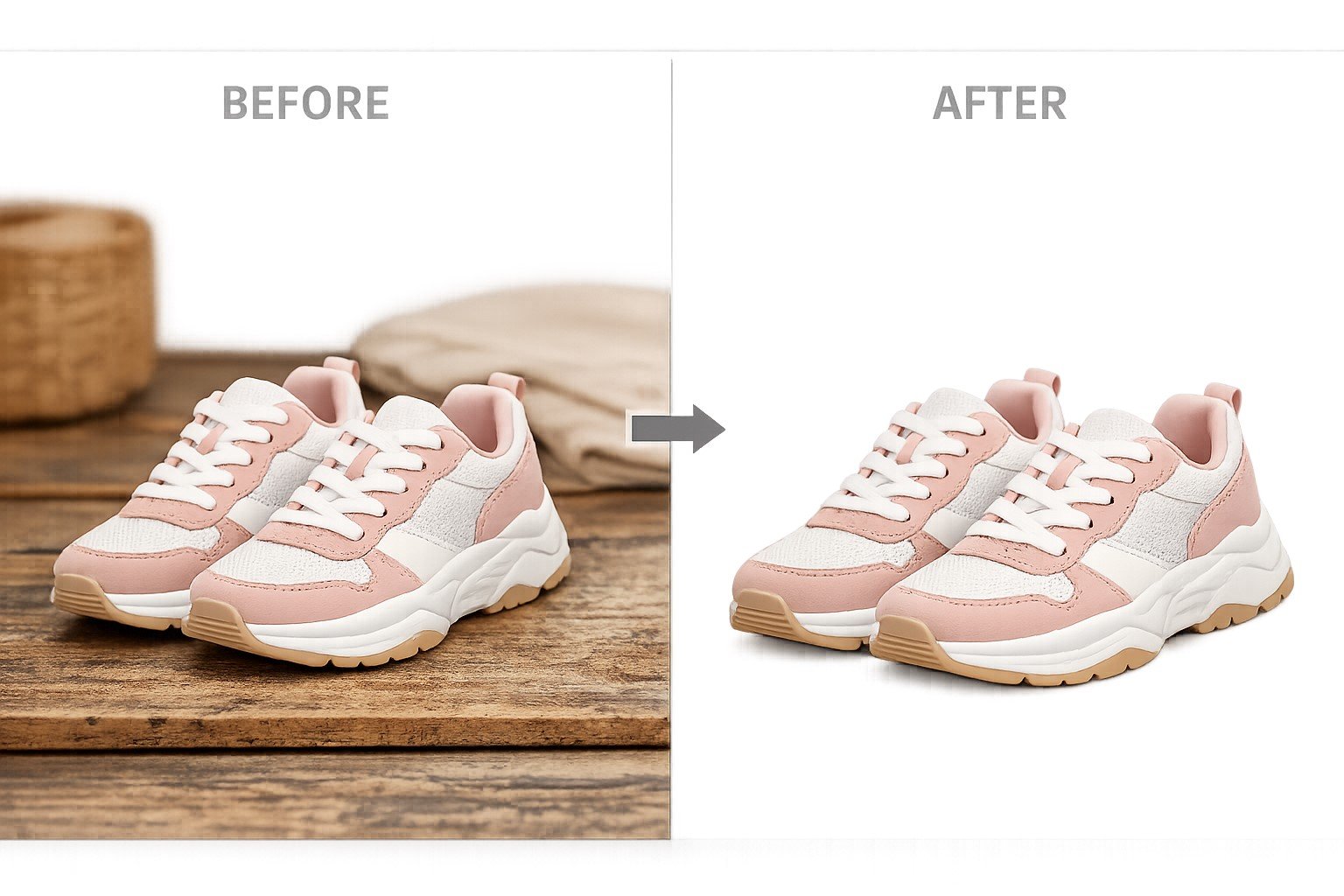
Product photo editing for e-commerce is the process of taking a raw product photo and preparing it for a live listing. That usually means removing or replacing the background, correcting color and lighting, cropping to the right dimensions, cleaning up dust or blemishes, and exporting the file in a format the platform accepts.
It’s different from general photo editing. You’re not trying to make an artistic image. You’re trying to make an accurate, clean, consistent representation of a product that a customer can trust and a marketplace algorithm will accept without flagging it.
Why Properly Edited Product Photos Matter for Sales
Shoppers can’t touch or try on what they see online. The photo is doing all the work that a physical store does in person. A photo that’s poorly lit, has a messy background, or looks inconsistent with your other listings signals one thing to a buyer: this seller might not be careful about the details either.
There’s also a practical side to this. Amazon, Etsy, and other marketplaces have strict image requirements, and listings that don’t meet them can get suppressed, rejected, or buried in search results. Clean, correctly formatted photos aren’t just about looking good. They’re often the difference between a listing that’s even visible and one that isn’t.
And there’s a return-rate angle too. Photos that don’t accurately represent color, scale, or detail lead to more returns, because customers get something that doesn’t match what they expected.
What You Need Before You Start Editing
You don’t need a studio to get usable product photos, but a few basics make editing much easier:
- A plain, even background (white or light gray works best) so removal is faster and cleaner
- Consistent lighting across all your product shots, so colors don’t shift between photos
- A tripod or stable surface to avoid blur, especially in low light
- Multiple angles of each product, shot at a consistent distance
- Raw files saved in an organized folder structure before you start editing anything
If your lighting or background is already messy at the shooting stage, editing takes longer and the results are never quite as clean. It’s worth spending ten extra minutes getting decent raw shots.
Step-by-Step Product Photo Editing Workflow
Here’s the process, in order. Most professional editors follow some version of this for every single product photo.
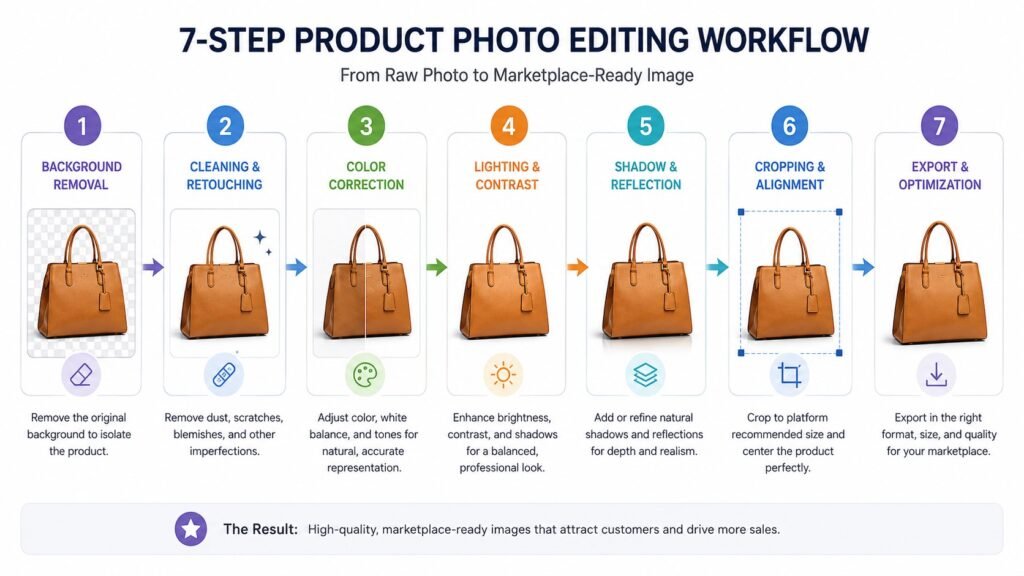
Image Editing Asia Free Trial: https://imageeditingasia.com/free-trial/
Step 1: Background Removal or Replacement
This is usually the first and most important step. Most marketplaces, Amazon especially, require a pure white background (RGB 255,255,255) for main product images. Even if your platform doesn’t require it, a clean background makes your product the clear focus.
Background removal is typically done with a clipping path (a precise vector outline around the product) for items with hard edges, like electronics or furniture, or with layer masking for items with soft or complex edges, like hair, fur, or fabric with loose threads. Clipping paths give sharper, more controlled edges. Masking handles soft transitions better.
Tools like Adobe Photoshop give you full manual control here. Apps like Photoroom or remove.bg can strip a background in seconds but often need manual cleanup afterward, especially around fine details.
Step 2: Cropping and Resizing to Platform Specs
Once the background is handled, crop and resize the image to match your target platform’s requirements. This matters more than people expect. Upload the wrong dimensions and some platforms will auto-crop your image in ways you didn’t intend, sometimes cutting off part of the product.
Keep the product centered, leave consistent margin space around it, and make sure the product fills a similar percentage of the frame across your whole catalog. Consistency here is what makes a storefront look professional instead of thrown together.
Step 3: Color Correction and White Balance
This is where a lot of listings go wrong. If your lighting had a slight yellow or blue cast, your product photo won’t match the real product, and that’s a direct path to returns and bad reviews.
Adjust white balance first, then fine-tune saturation, contrast, and exposure so the product’s actual color comes through accurately. If you’re selling clothing, jewelry, or anything where color accuracy really matters, this step deserves extra attention. Don’t oversaturate to make the photo “pop.” It should look real, not filtered.
Step 4: Removing Dust, Scratches, and Imperfections
Zoom in and check for dust specks, scratches, lint, fingerprints, or small blemishes that showed up during the shoot. These are easy to miss at normal zoom but obvious once a customer clicks to see the full-size image.
Tools like the healing brush or clone stamp in Photoshop handle this well for small imperfections. For reflective products like jewelry or glassware, this step often takes longer than the rest of the edit combined, since reflections pick up dust and studio equipment easily.
Step 5: Adding Natural Shadows or Reflections
A product floating on a pure white background with zero shadow can look fake or flat. Adding a subtle drop shadow or a soft reflection underneath grounds the product and makes it look more realistic.
The key word is subtle. A shadow that’s too dark or too sharp looks artificial and draws attention away from the product itself. Match the shadow angle and softness to how the original lighting actually fell on the product when it was shot.
Step 6: Sharpening and Final Touch-Ups
Apply light sharpening to bring out texture and detail, especially important for materials like fabric, wood grain, or metal. Be careful not to oversharpen, which creates a harsh, unnatural edge around the product.
This is also the point to check overall consistency: does this photo match the lighting, color tone, and framing of the rest of your product catalog? If you’re editing a whole batch, compare them side by side before moving on.
Step 7: Exporting in the Right Format and Compression
Export as JPEG for most product photos (smaller file size, widely supported) or PNG if you need a transparent background. Compress the file enough to keep page load speed fast without visibly degrading quality. Slow-loading pages hurt both user experience and search rankings, so this step isn’t optional even though it’s easy to skip.
Save at the resolution the platform requires. Going lower creates blurry, unprofessional-looking images. Going unnecessarily higher just slows down your page for no visual benefit.
Platform-Specific Image Requirements
Each major marketplace has its own rules, and getting these wrong can get your listing rejected or suppressed.
| Platform | Main Image Background | Minimum Size | Format | Notes |
|---|---|---|---|---|
| Amazon | Pure white (RGB 255,255,255) required | 1000 x 1000 px recommended for zoom | JPEG preferred | Product must fill 85%+ of frame; no text, logos, or watermarks on main image |
| Shopify | No strict requirement, but white or transparent is standard | 2048 x 2048 px recommended | JPEG or PNG | Consistent aspect ratio across product images improves storefront appearance |
| Etsy | Flexible, lifestyle or styled backgrounds common | 2000 px on the shortest side recommended | JPEG or PNG | First image is used as the primary thumbnail; needs to work at small size too |
| eBay | White background recommended for main image | 1600 px on longest side recommended | JPEG preferred | No borders, watermarks, or added text on the primary photo |
Requirements on these platforms change periodically, so it’s worth checking each marketplace’s current seller documentation before a big photo batch, rather than relying on older guidance.
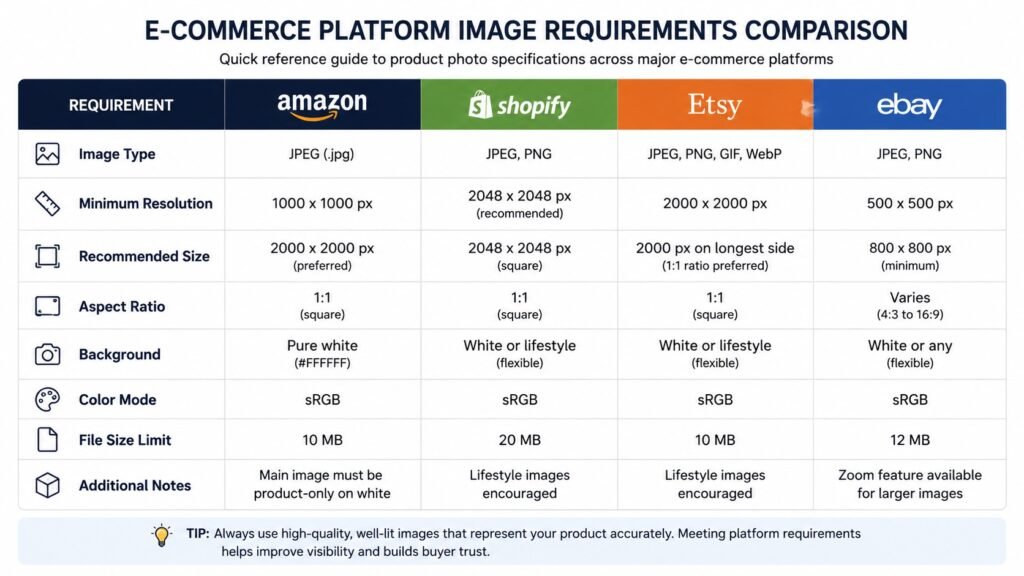
Image Editing Asia Free Trial: https://imageeditingasia.com/free-trial/
Best Tools for Editing Product Photos
DIY software options:
- Adobe Photoshop: The industry standard for precise clipping paths, masking, and color correction. Steep learning curve, but unmatched control.
- Canva: Good for quick background removal and simple resizing if you’re not comfortable with Photoshop. Limited for detailed retouching.
- Photoroom: Built specifically for product photography, with fast AI background removal and batch processing features.
- Lightroom: Strong for color correction and batch editing across large photo sets, less suited to detailed background removal.
Professional editing services: If you’re editing hundreds or thousands of SKUs, doing this manually in Photoshop stops being practical fairly quickly. This is where a dedicated photo editing service, like Image Editing Asia, comes in. Services like this specialize in high-volume clipping paths, background removal, and color correction, with consistent quality across an entire catalog rather than photo-by-photo variation.
DIY vs. Hiring a Professional Photo Editing Service
There’s no universally right answer here. It depends on your volume, timeline, and how much control you want over the process.
DIY makes sense when:
- You’re editing a small number of products (under 20-30 at a time)
- You already have some photo editing experience
- You have time to invest in learning the tools
- Your budget doesn’t allow for outsourcing yet
Outsourcing makes sense when:
- You’re editing large product catalogs regularly
- You need consistent quality across hundreds or thousands of images
- Your time is better spent on other parts of the business
- You’re launching on multiple platforms with different image specs at once
If your catalog is growing and editing photos is eating into time you’d rather spend on sourcing, marketing, or customer service, a service like Image Editing Asia can take that entire workflow off your plate while keeping your images consistent across your whole store.
Common Product Photo Editing Mistakes to Avoid
- Inconsistent backgrounds across a catalog. Mixing pure white, off-white, and gray backgrounds makes a storefront look disorganized.
- Over-editing color to make products “pop.” This creates a mismatch between the photo and the real product, which drives returns.
- Ignoring platform-specific size and background rules. This can get listings suppressed or rejected outright.
- Skipping the zoom-in check for dust and imperfections. These are invisible at thumbnail size but obvious once a customer clicks in.
- Using harsh, unrealistic drop shadows. This makes photos look artificially edited instead of professional.
- Exporting at the wrong compression level. Either files are too large and slow the page down, or too compressed and look blurry.
- Not maintaining a consistent product-to-frame ratio. Products that vary in size within the frame make a catalog look inconsistent.
Practical Tips for Consistent, Scalable Editing
If you’re managing more than a handful of products, build a simple style guide for yourself: exact background color, margin percentage, shadow style, and export settings. Save this as a reference so every photo, whether you edit it or someone else does, comes out looking like it belongs to the same brand.
Batch processing tools (actions in Photoshop, presets in Lightroom) can apply the same crop, color correction, and export settings across dozens of images at once, which saves a huge amount of time once your catalog grows past a few dozen SKUs.
Key Takeaways
- Clean background removal, accurate color correction, and correct sizing are the three non-negotiables for e-commerce product photos.
- Each marketplace has different image requirements. Check Amazon, Shopify, and Etsy’s current specs before uploading in bulk.
- Consistency across your whole catalog matters as much as the quality of any single photo.
- DIY editing works for small volumes. Larger catalogs usually benefit from a professional editing service for speed and consistency.
Frequently Asked Questions
Do I need Photoshop to edit product photos for e-commerce? No, but it gives you the most control, especially for clipping paths and detailed retouching. Tools like Photoroom or Canva can handle basic background removal and resizing if you’re working with a small catalog or don’t need pixel-level precision.
What’s the difference between a clipping path and background masking? A clipping path is a precise vector outline used for products with clean, hard edges, like electronics or bottles. Masking is better for soft or complex edges, like hair, fur, or fabric with loose threads, since it handles gradual transitions more naturally.
How much does professional product photo editing cost? Pricing varies by provider, image complexity, and volume, so it’s worth requesting a quote based on your specific catalog rather than assuming a flat rate. Services like Image Editing Asia can provide a quote once they know your product type and photo count.
Can I use the same edited photo across Amazon, Shopify, and Etsy? Sometimes, but not always. Amazon requires a pure white background on main images, while Etsy allows more flexible, styled backgrounds. It’s safer to export platform-specific versions rather than assuming one edit fits every marketplace’s rules.
Is batch editing worth it for a small catalog? If you have fewer than 20-30 products, manual editing is usually manageable. Once your catalog grows past that, batch processing or outsourcing saves significant time and keeps your images looking consistent.
Final Thoughts
Editing product photos for e-commerce isn’t about making things look flashy. It’s about being consistent, accurate, and meeting the technical requirements of whatever platform you’re selling on. Follow the same workflow every time, background removal, cropping, color correction, cleanup, shadow, sharpening, export, and your storefront will start looking like it belongs to a serious, established brand.
If your catalog is growing faster than you can keep up with editing, that’s usually the point where outsourcing starts making financial sense. Image Editing Asia works with e-commerce sellers on exactly this kind of high-volume, consistent photo editing, from background removal to full retouching. You can request a free sample edit through imageeditingasia.com to see how your own product photos would look cleaned up and ready to sell.
Image Editing Asia Free Trial: https://imageeditingasia.com/free-trial/