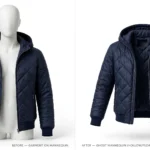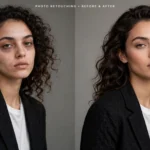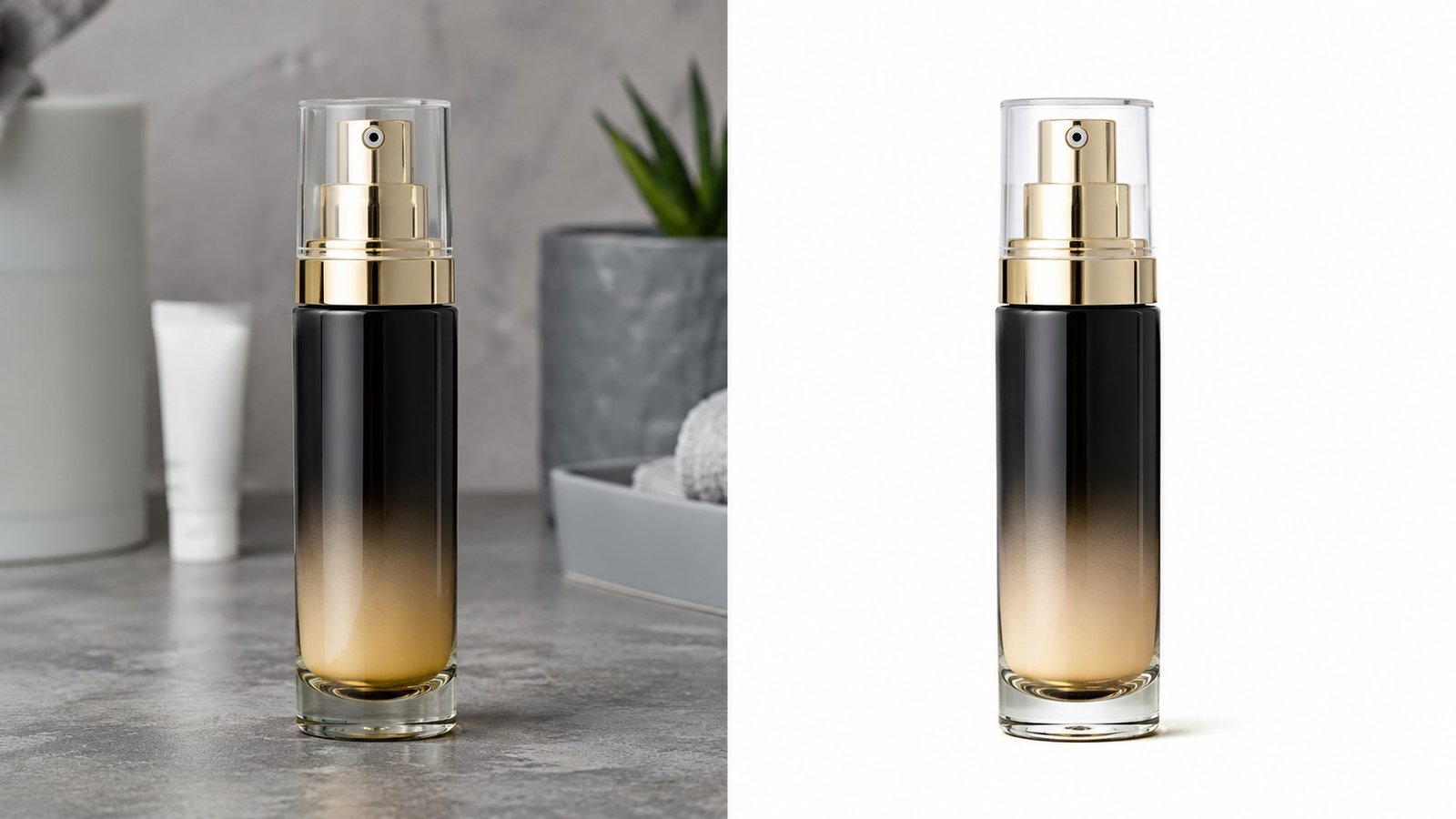
You spent time shooting your products. The photos look decent — but the background is cluttered, grey, or just wrong for your marketplace listing. Now you need clean, white backgrounds before you can go live.
That’s where most sellers hit a wall. Pay a designer? Takes time and costs money. Do it yourself? Takes even longer if you don’t know the right tools.
The good news: there are fast and cheap ways to get it done — whether you have 5 photos or 500. This guide covers every method, so you can pick what works for your volume and budget.
👉 Image Editing Asia Free Trial
Why Background Removal Matters for Product Photos
A clean background is not just about aesthetics. It directly affects whether your products sell.
Marketplaces have strict requirements. Amazon requires product images to have a pure white background (RGB 255, 255, 255) with no shadows, borders, or text. Shopify and Etsy strongly recommend clean backgrounds to maintain a professional look. Submit the wrong image and your listing gets rejected or worse, suppressed.
Clean backgrounds improve conversion rates. When the background is removed and replaced with white or transparent, the product becomes the focus. Buyers can see exactly what they’re getting. Studies consistently show that clean, professional product images increase click-through rates and reduce returns.
Method 1 — Free AI Tools (Fast, but Limited)
If you have a handful of images and a tight budget, free AI tools get the job done quickly.
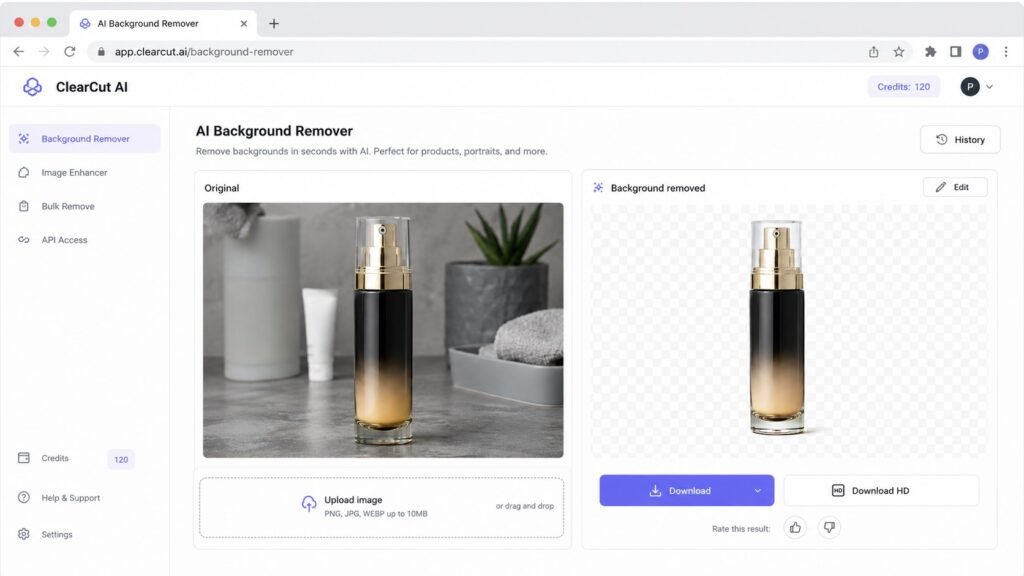
Remove.bg is the most popular option. Upload an image, and the background is gone in seconds. It works well for simple products on plain backgrounds. The free version gives you low-resolution downloads; you’ll need to pay for full resolution.
Adobe Express and Canva’s Background Remover are built into design platforms, which is convenient if you’re already using them. Both use AI to detect the subject automatically. Quality is solid for most product types.
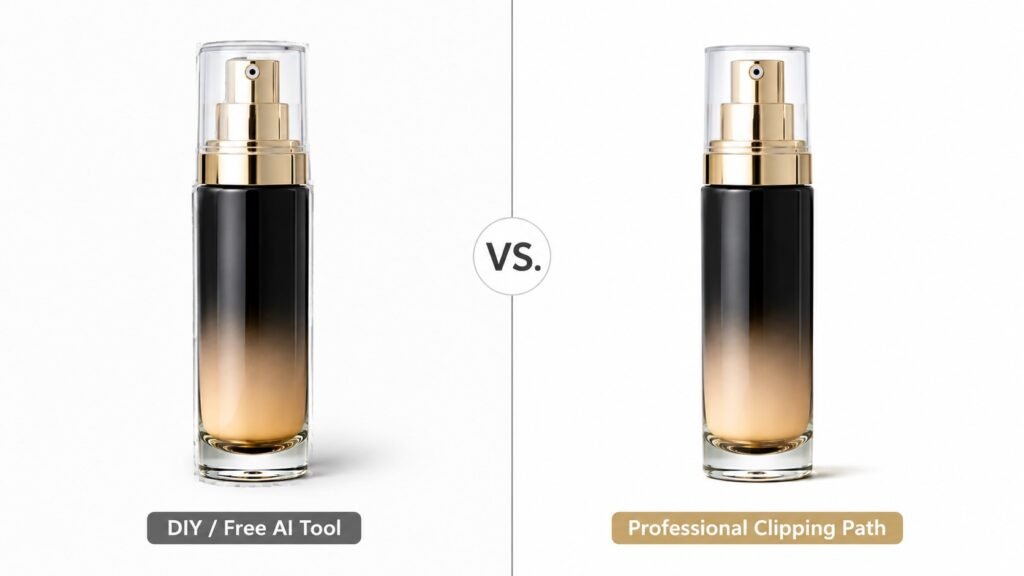
When free tools fall short: AI tools struggle with complex edges — think jewelry with fine details, products with transparent elements (glass, bottles), or items photographed against a busy background. The result often needs manual cleanup, which takes more time than you’d expect.
Best for: 1–10 simple product images with clean original backgrounds.
Method 2 — Paid AI Tools (More Control)
Paid tools give you more resolution, better accuracy, and additional editing options — for a reasonable monthly cost.
Adobe Photoshop now includes AI-powered background removal with its “Select Subject” and “Remove Background” tools. For complex products, you can refine the selection manually. This gives you the most control, but requires some skill and a Creative Cloud subscription.
Pixlr and Fotor are affordable browser-based alternatives. Both offer background removal at a fraction of Photoshop’s cost and are easier to learn.
Quick Comparison
| Method | Speed | Quality | Cost | Best For |
|---|---|---|---|---|
| Free AI Tools | Very fast | Good (simple products) | Free | 1–10 basic images |
| Paid AI Tools | Fast | Good–Very Good | $10–$55/month | Regular small batches |
| Professional Service | Fast (bulk) | Excellent | Per image | 50–500+ images |
👉 Image Editing Asia Free Trial
Method 3 — Professional Background Removal Services (Best for Volume and Quality)
When you’re dealing with large volumes, tight deadlines, or products that need pixel-perfect edges, professional editing services are the most efficient option.
A clipping path service uses skilled editors who manually trace around the product to create a precise cutout. This method handles complex shapes, fine hair or fur, transparent items, and multi-product shots — things AI tools consistently get wrong.
When to outsource:
- You have more than 50 images to edit
- Your products have fine details (jewelry, fabric, electronics)
- You need consistent results across a large catalogue
- You’ve tried AI tools and the edges look messy
Image Editing Asia provides professional background removal at competitive per-image rates, with fast turnaround for bulk orders. Their team handles everything from simple cutouts to complex clipping paths, so you get clean, marketplace-ready images without spending hours doing it yourself.
What to expect from a professional service:
- Clean, precise edges even on complex products
- Consistent results across your entire catalogue
- Output in the format you need (PNG with transparent background, white background JPG, etc.)
- Quality checks before delivery
How to Choose the Right Method for Your Business
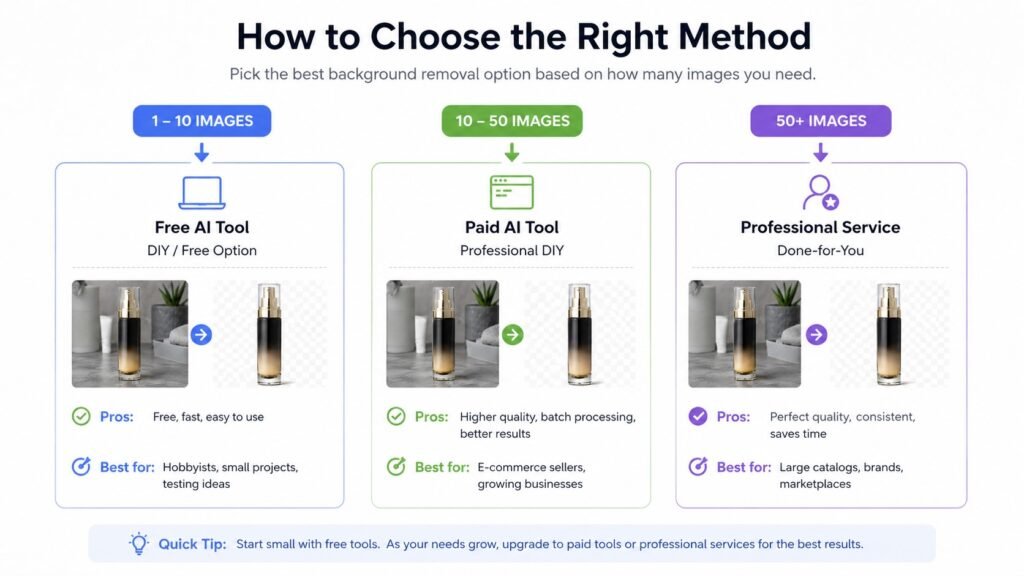
Not every seller needs the same solution. Here’s a simple way to decide:
You need 1–10 images → Use a free tool. Remove.bg or Canva will handle simple products quickly. Check the edges and touch up if needed.
You need 10–50 images regularly → Consider a paid tool. A Photoshop subscription or a tool like Pixlr gives you better results and saves time if you’re editing frequently.
You need 50–500+ images → Outsource to a professional service. The time you save is worth far more than the per-image cost. Services like Image Editing Asia scale with your volume, so large catalogue updates don’t become a bottleneck.
Your products have complex edges → Always use a professional service, regardless of volume. AI tools will leave messy results on jewelry, transparent packaging, or detailed textures. The difference in quality is visible, and it affects how buyers perceive your brand.
Common Mistakes to Avoid
Using low-resolution original images. Background removal tools — AI or human — work best with sharp, high-resolution photos. A blurry original means a blurry cutout.
Skipping quality checks on AI outputs. AI tools are fast, but they make mistakes. Always zoom in on edges before using the image in a listing. A ragged edge on a product photo looks unprofessional and can cost you sales.
Saving in the wrong format. If you need a transparent background, save as PNG. If the marketplace requires a white background (like Amazon), save as JPG with a white fill. Sending the wrong format means re-editing later.
Inconsistent editing across your catalogue. If some images have white backgrounds and others have shadows or different tones, your store looks disorganised. Use the same method and settings across all your product photos.
Tips to Get Better Results Every Time
Shoot on a plain, light background. Even if you plan to replace the background entirely, starting with a clean white or light grey background makes the AI’s job easier and reduces the amount of cleanup needed.
Use consistent lighting. Harsh shadows at the edges make it harder to isolate the product. Soft, diffused lighting gives cleaner edges and more natural-looking results after background removal.
Batch your images before sending them out. If you’re using a professional service, send all your images together. Most services offer better rates for bulk orders, and you’ll get consistent results when one team edits your entire catalogue at once.
Keep your original files. Always retain the original high-resolution photo before any editing. If you need to re-edit later — different format, different background colour — you’ll want the unedited original.
Frequently Asked Questions
What is the fastest way to remove a background from a product photo?
For a single image, AI tools like Remove.bg are the fastest — results in under 10 seconds. For large batches, professional services like Image Editing Asia are faster overall because you submit all files at once and receive edited images without spending your own time on each one.
How much does product photo background removal cost?
Free tools are available for low-resolution output. Professional services typically charge per image, often starting below $1/image for bulk orders. The cost scales with complexity — simple cutouts cost less than products with fine edges or transparent elements.
What format should I save product photos in after removing the background?
Save as PNG if you need a transparent background. If the marketplace requires a white background (such as Amazon), save as JPG with a white fill. PNG files are larger but preserve transparency; JPG files are smaller and load faster.
Can I remove backgrounds from product photos in bulk?
Yes. Most professional editing services accept bulk submissions and process large orders efficiently. Some AI platforms also support batch uploads, though quality may vary on complex products.
Is DIY background removal good enough for Amazon or Shopify?
For simple products photographed on clean backgrounds, yes — free AI tools usually pass Amazon’s requirements. For complex products (jewelry, glass, transparent packaging, detailed textures), professional editing gives cleaner results that consistently meet marketplace standards.
Final Thoughts
Removing backgrounds from product photos doesn’t have to be expensive or time-consuming. Free AI tools work well for small volumes and simple products. Paid tools give you more control if you edit regularly. And for large catalogues or quality-critical images, professional services offer the best results for the cost.
If you’re managing more than a handful of product images, outsourcing is almost always the smarter move — it frees up your time and ensures consistent, marketplace-ready photos every time.
Ready to get clean product photos without the hassle? Image Editing Asia offers professional background removal with fast turnaround and competitive bulk pricing. Get in touch to find out how they can help you scale your product image workflow.